
Use cloud AI models with a local model as backup
4 min read
Use your chosen cloud AI model or endpoint through Aventail™ Link, prepare a local model as backup, and verify where requests run.
Video
Set up Aventail™: cloud AI with a local fallback
Loading this video connects to YouTube, a Google service, which may set its own cookies.
You can use your chosen cloud AI model through Aventail™ while keeping a downloaded model on your computer as backup. Your application sends model requests to Aventail™ Link’s local endpoint. Link follows the destination order you set, so the application can keep using that endpoint while the execution destination changes.
This guide covers the simple routing setup available to all accounts. It switches destinations when a connection fails. For the basic terminology, start with What is routing?
Supported choices include Google and Anthropic models, Kimi, DeepSeek, Mistral and Qwen. Use the provider connection or endpoint that offers the model you want; the choices shown depend on your connection and access.
You can use your own software or a compatible OpenAI-compatible chat-completions client. Copy the address and model identifier from Link and follow the local API walkthrough. Aventail™ Connect provides automatic connection setup for supported apps such as Claude Code and OpenCode. Both paths send model requests through Link.
Before you start
Install Aventail™ Link, sign in and connect the computer to your account. Have access to a provider API key and an available model in that provider account. A consumer chat subscription does not establish that an API key has access to a particular model.
Choose a local model your computer can run and that supports the features your app needs. A small local model may behave differently from the cloud model, so test both on the intended task.
1. Choose the cloud model first
Open Aventail™ Control and select your computer under Devices.
Open Routing. Choose Set up routing, or Edit routing if you already have a setup.
At Choose your first model, select Cloud provider, then choose the connection for the model you want to use.
Use an approved saved connection, or enter the provider API key. Review Allow [device] to use this connection before granting access.
Select Connect provider or, for a saved connection needing permission, Allow this device. Choose an available model, then Continue.
Use the model choices shown for your connection. Google’s Gemini 4 Argon and Carbon are examples, alongside the wider supported model range. Access still depends on your provider account. Keep API keys out of screenshots and shared messages.
2. Prepare the local backup
At Add a backup?, choose Add a backup, then This device. Complete the local model download and wait until it is ready to use. Select Add backup.
The local model is the final backup. It loads when needed, so its first request may include startup time. Prepare it while you have connectivity; downloading it after an outage defeats the purpose of having a local backup.
You can add another approved remote backup before the local one. Keep the initial setup to the destinations you need so it is easy to test.
3. Review and apply the order
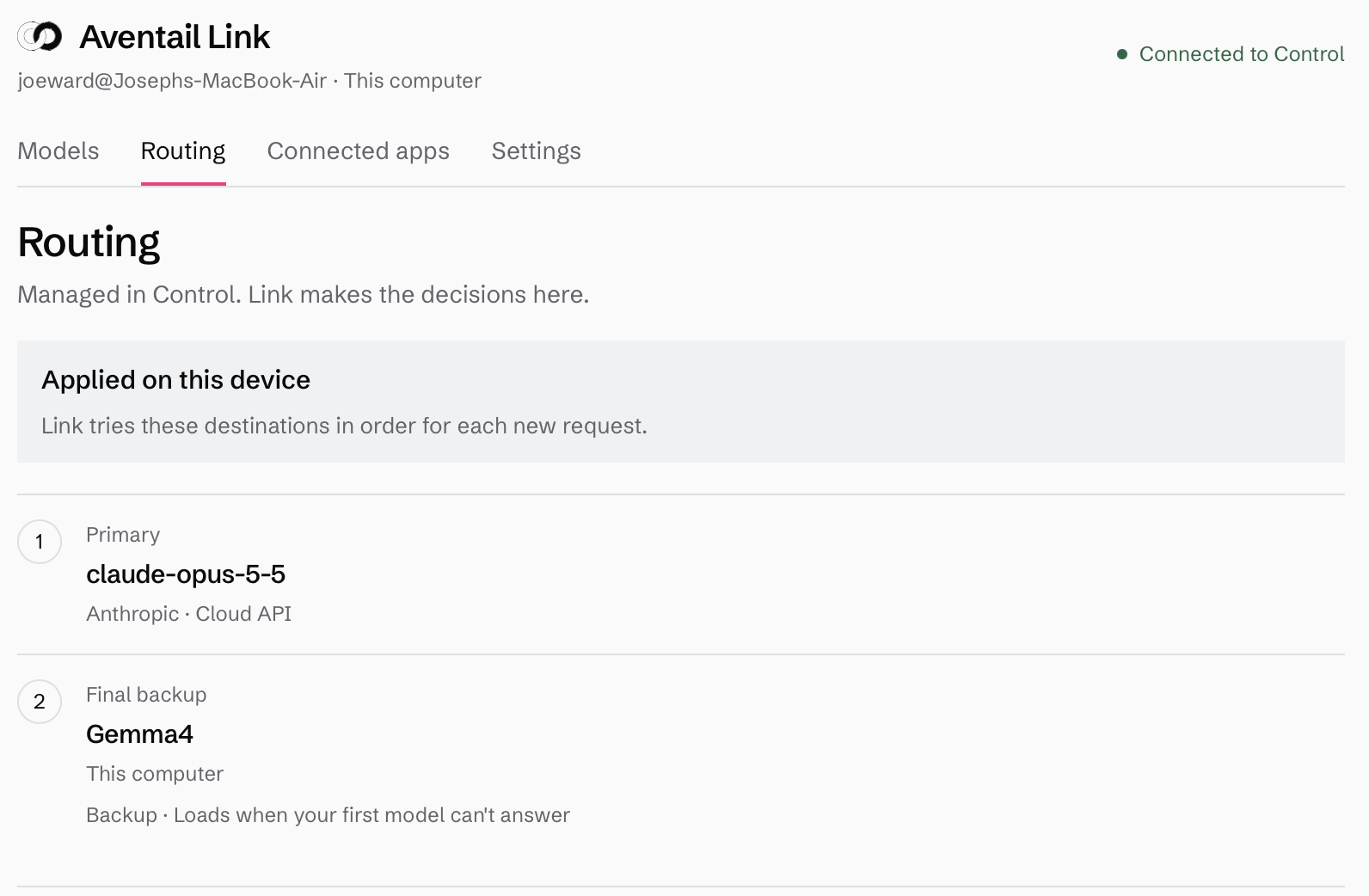
Check Ready to apply. Your cloud model should be the primary destination and This computer the final backup. Every selected destination may receive requests when those before it are unreachable.
Select Apply to [device]. Wait for Applied on device. If Control shows Saved · Waiting for Link or Update not applied, the new setup is not confirmed. Previously applied settings remain active until the update succeeds.
4. Check the cloud route and the backup
Use your connected client and a harmless prompt, such as “Summarise this public paragraph in one sentence.” With the cloud connection available, check that the primary model handles it.
Review the request records reported in Control’s Requests view and Link’s routing status. Check the reported model and destination where available. A local API address alone does not show where processing happened.
On a test computer, temporarily disconnect internet access while keeping Link running. Repeat a harmless request and check that the downloaded local model handles it. Restore connectivity afterwards. Each new request starts at the top of the destination order, so the primary cloud model is tried again when reachable.
If a record does not identify the destination, check Link’s diagnostic information or ask support before treating the test as proof.
What this setup does and does not change
Cloud processing and charges. Requests sent to a cloud endpoint use that provider’s infrastructure and your provider account. Adding a local backup does not make the cloud requests private or local.
Connection failure. This setup tries backups when a destination cannot be reached. It is not a switch based on answer quality, temperature or latency.
Offline use. Link can run a prepared local model without internet access. The app you connect may have separate sign-in or network requirements.
For application setup, follow the Claude setup guide. If you want to use a model on another computer as a backup, follow the peer-to-peer routing guide.