
More control over models, routing and fallbacks in Aventail™
3 min read
Manage provider connections in Control, prepare a local backup in Link and see which destination answered in Workspace.
Aventail™ brings model execution, routing, central management and an employee workspace into one platform. Our latest updates make it easier to connect those parts: choose the models your device can use, set the order in which Link tries them and see where a request was processed.
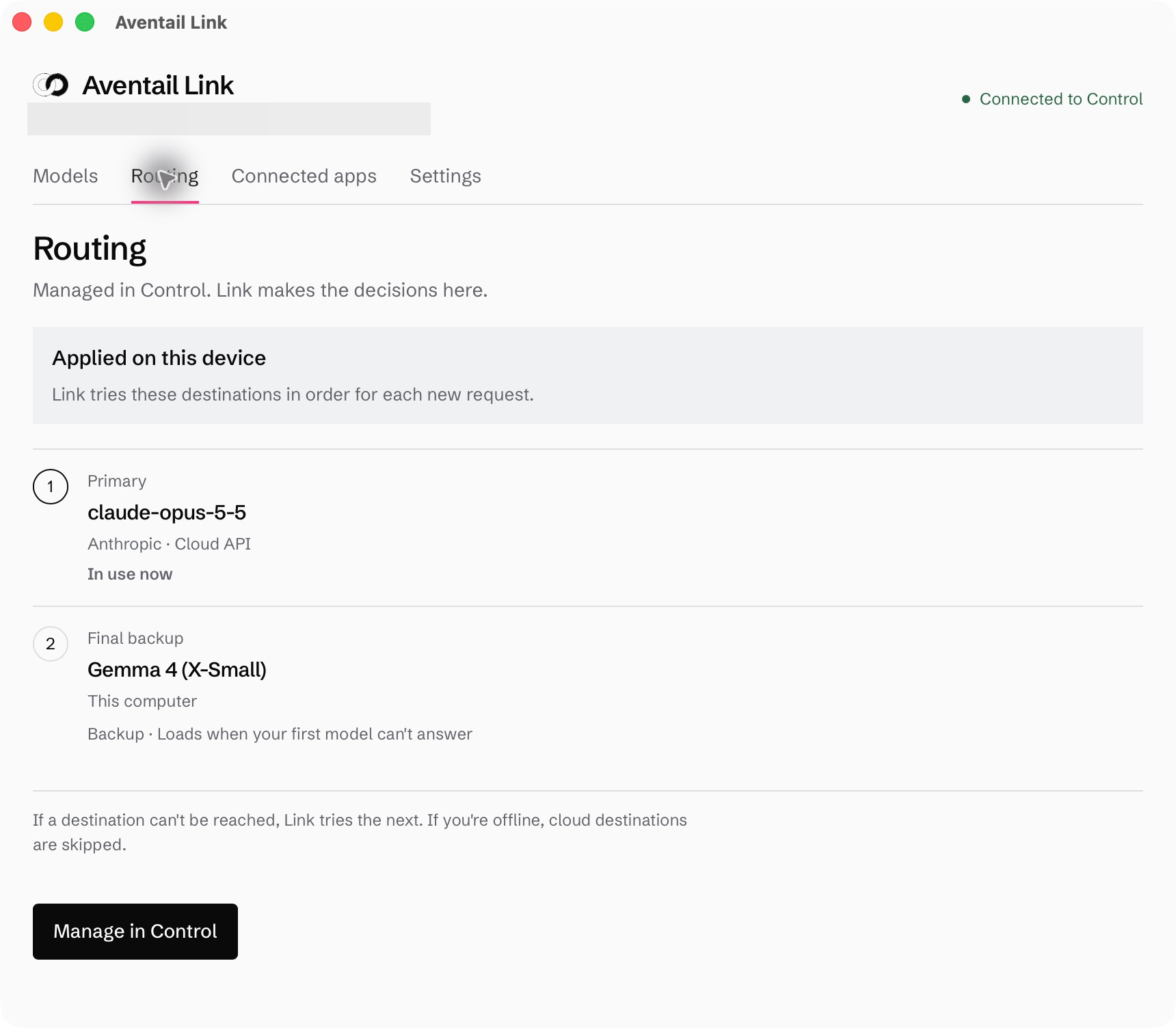
For a practical example, you can use an approved Anthropic connection as your first destination and a model running on your computer as the final backup. Link runs the local model itself and applies your routing rules on the device.
Manage models and provider connections together
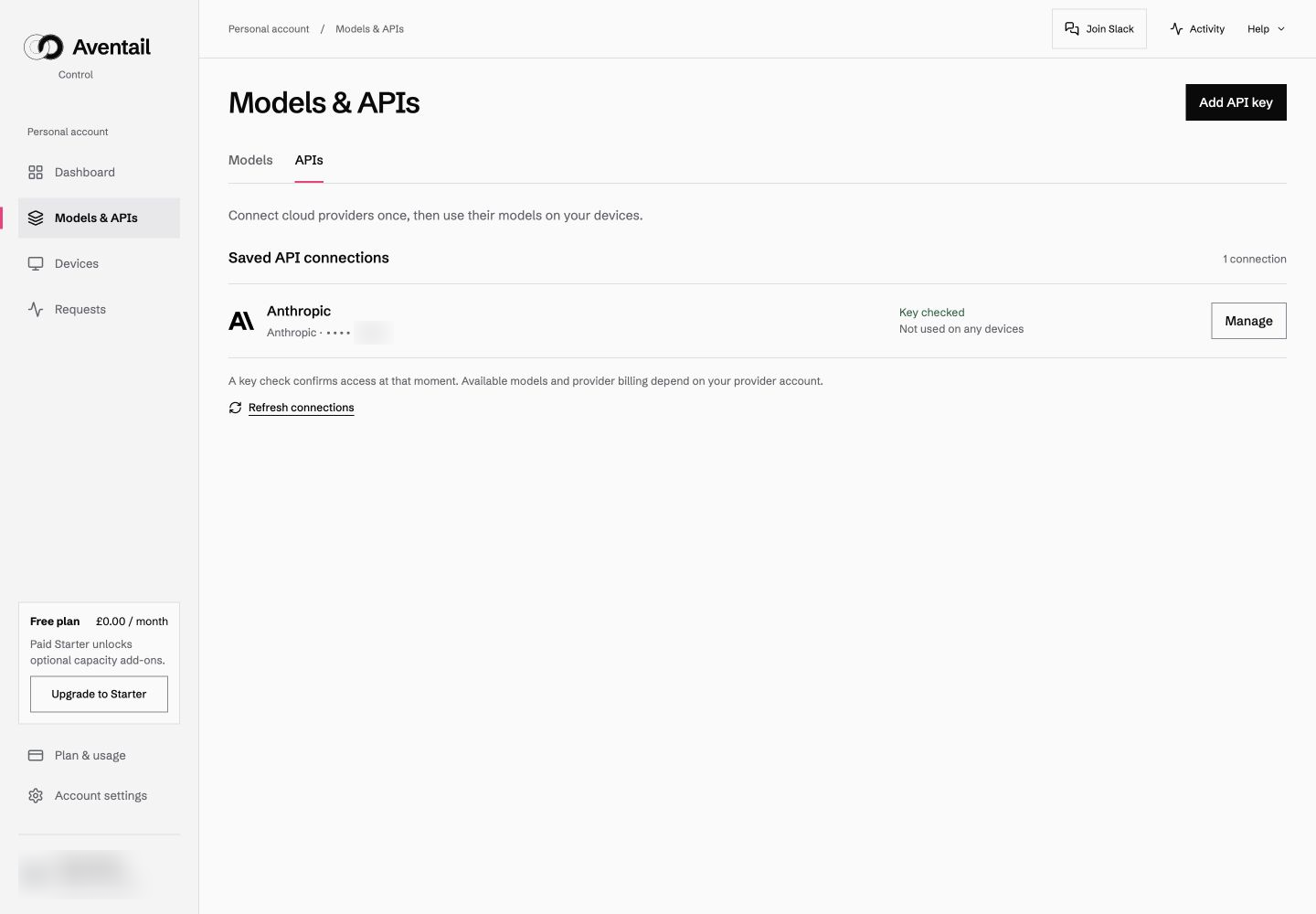
The new Models & APIs page in Control brings your model library and saved provider connections into the same place.
Use Models to browse the Aventail™ Library or manage your uploads. Open APIs to add a provider connection, check its key and see which devices use it. You can rename a connection or replace its key while keeping its identity and routing references.
Saving a connection and allowing a device to use it are separate actions. You can prepare a connection before registering a computer, then grant access to each intended device when configuring its route. Provider billing and model access remain with your provider account.
Choose your first destination and prepare backups
In Control, open a device’s Routing page to choose its first destination and add ordered backups. A local backup runs on that device and sits at the end of the chain.
Link receives the configuration and prepares the local backup’s model and engine. Applied confirms the route configuration; check backup preparation separately. The model loads when needed, so the first local response can take longer.
When an earlier destination fails, Link can move to the next eligible backup. Every fallback follows the same policy restrictions. If no destination is permitted, the request fails. A prepared local backup also needs enough memory and the capabilities required by the task, so test the workflow before relying on it.
For fixed cloud-first or peer-first routes, supported apps can keep the same route selected as Link moves between eligible destinations.
See what answered in Workspace
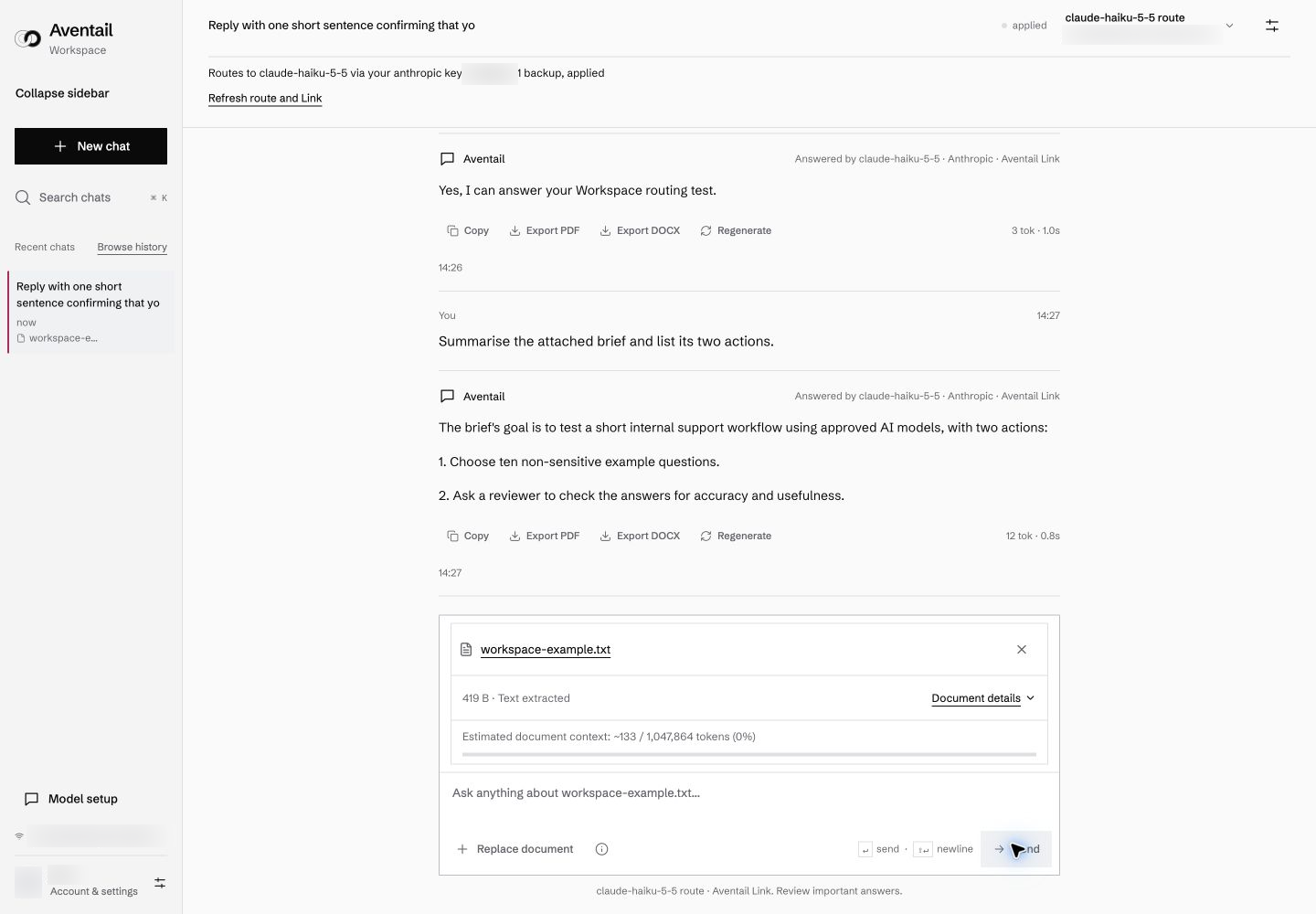
Workspace’s Through Link option follows this computer’s applied route. You can inspect its status and backup count, open Manage routing in Control and refresh after a change.
Each completed reply has an Answered by label identifying the reported model and destination. That makes the selected route and the destination used for a particular answer easier to distinguish.
Document questions follow the same processing choice. Attach a document, wait for text extraction, check its estimated context use and ask your question. In the example below, Workspace answered a question about a short sample brief through Anthropic via Link.
Workspace also offers In this browser models. These run separately in the browser and have their own download and memory requirements. Link’s local backup belongs to its configured route.
Keep processing within your rules
The routing decision stays on the originating machine. Control manages configuration outside the inference request path. An approved cloud provider receives requests routed to it, including document text used in those requests; a local Link address alone does not establish local processing.
Peer and hosted routing remain in beta. Choose destinations approved for the work and check their model, context and resource requirements.
Set up your route
Start with one device and a short, non-sensitive request. Check the applied route, backup readiness and the destination reported for the answer.
Our documentation also covers Workspace and the Link release notes.